Monday, September 2, 2019

HTML Tables

I hope you read my HTML List articles.


HTML Tables

   Did you know how to create the table and insert the data into the table in normally? HTML table has same mechanism.Tables represent a simple mechanism for creating rows and columns of data.
   HTML table code has 4 main parts. They are:
  • <table> tag - define a HTML table
  • <tr> tag - define a table row
  • <th> tag - define a table heading. By default, table headings are bold and centered. 
  • <td> tag - define a table data/cell. It is the data containers of the table.They can contain all sorts of HTML elements; text, images, lists, other tables, etc.4

               Example code
                    <table>
                           <tr>                                
                                <th>Firstname</th>
                                <th>Lastname</th> 
                                <th>Age</th>
                           </tr>                           
                           <tr>                                
                                <td>Jill</td>
                                <td>Smith</td>
                                <td>50</td>
                           </tr>                           
                           <tr>                                
                                <td>Eve</td>
                                <td>Jackson</td>
                                <td>94</td>
                           </tr>                           
                           <tr>                                
                                <td>John</td>
                                <td>Doe</td>
                                <td>80</td>
                           </tr>                    
                    </table>

               Output


   Now you can create the HTML tables. Sometimes you can see combine two or more rows or two or more columns in the table.
  • Rowspan - used to make the cell span more than a row.
               Example code
                    <table>
                           <tr>                                
                                <th>Name:</th>
                                <td>Bill Gates</td>
                           </tr>                           
                           <tr>                                
                                <th rowspan="2">Telephone:</th>
                                <td>55577854</td>
                           </tr>                           
                           <tr>                                
                                <td>55577855</td>
                           </tr>                    
                    </table>

               Output


   You can see the two telephone numbers are in the two separate rows. The row which is named as Telephone is a combination of the previously mentioned rows.
  • Colspan - used to make the cell span more than a column.
               Example code
                    <table>
                           <tr>
                                <th>Name</th>
                                <th colspan="2">Telephone</th>
                           </tr>
                           <tr>                                
                                <td>Bill Gates</td>
                                <td>55577854</td>
                                <td>55577855</td>
                           </tr>                    
                    </table> 

               Output


   You can see the two telephone numbers are in the two separate Columns. The column which is named as Telephone is a combination of the previously mentioned columns. 


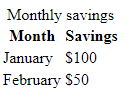
Adding caption

  • <caption> tag : used to add a caption to a table.It must be inserted immediately after the <table> tag.

               Example code
                    <table>
                       <caption>Monthly savings</caption>
                           <tr>
                             <th>Month</th>
                             <th>Savings</th>
                           </tr>
                           <tr>
                             <td>January</td>
                             <td>$100</td>
                           </tr>
                           <tr>
                             <td>February</td>
                             <td>$50</td>
                           </tr>
                    </table>

               Output
               Exercise

                    <table>
                       <caption>Time Table</caption>
                           <tr>
                               <th rowspan="6">Hours</th>
                               <th>Mon</th>
                               <th>Tues</th>
                               <th>Wed</th>
                               <th>Thur</th>
                               <th>Fri</th>
                           </tr>
                           <tr>
                               <td>Science</td>
                               <td>Maths</td>
                               <td>Science</td>
                               <td>Maths</td>
                               <td>Art</td>
                           </tr>
                           <tr>
                               <td>Social</td>
                               <td>History</td>
                               <td>English</td>
                               <td>Social</td>
                               <td>Sport</td>
                           </tr>
                          <tr>
                               <td colspan="5">Lunch</td>
                           </tr>
                           <tr>
                               <td>Science</td>
                               <td>Maths</td>
                               <td>Science</td>
                               <td>Maths</td>
                               <td rowspan="2">Project</td>
                           </tr>
                           <tr>
                               <td>Social</td>
                               <td>History</td>
                               <td>English</td>
                               <td>Social</td>
                           </tr>
                    </table>


   I hope you got the knowledge of HTML table.

   See you soon with the HTML form.

Tuesday, August 27, 2019

HTML Lists


   I hope you read my HTML font and text formatting tags articles.


   Let's learn how to list the thing in HTML. 


Lists in HTML 

   Lists are used to organize items in the browser window. there are two type of list.


      Unordered list :

   It can be also called Bulleted list. That list items with no particular order.
  • An unordered list starts with the <ul> tag.
  • Each list item starts with the <li> tag.

               Example code
                    <ul>
                         <li>Coffee</li>
                         <li>Tea</li>
                         <li>Milk</li>
                    </ul>

   It has 4 type of unordered list symbols as disc,circle,square and none
  • disc : Sets the list item marker to a bullet. It is the default one.

               Example code
                    <ul type="disc">
                         <li>Coffee</li>
                         <li>Tea</li>
                         <li>Milk</li>
                    </ul>


  • circle : Sets the list item marker to a circle

               Example code
                    <ul type="circle">
                         <li>Coffee</li>
                         <li>Tea</li>
                         <li>Milk</li>
                    </ul>
  • square : Sets the list item marker to a square

               Example code
                    <ul type="square">
                         <li>Coffee</li>
                         <li>Tea</li>
                         <li>Milk</li>
                    </ul>
  • none : The list items will not be marked

               Example code
                    <ul type="none">
                         <li>Coffee</li>
                         <li>Tea</li>
                         <li>Milk</li>
                    </ul>


     Ordered list :

   It can be also called numberd list. It has proper order.

  • An ordered list starts with the <ol> tag. 
  • Each list item starts with the <li> tag.

               Example code
                    <ol>
                         <li>Coffee</li>
                         <li>Tea</li>
                         <li>Milk</li>
                   </ol>

   It has 5 type of unodered list symbols as numbers, uppercase letters, lowercase letters,uppercase roman numbers and lowercase roman numbers.


  • type="1" : The list items will be numbered with numbers. It is the default one.

               Example code
                    <ol type="1">
                         <li>Coffee</li>
                         <li>Tea</li>
                         <li>Milk</li>
                    </ol>
  • type="A" : The list items will be numbered with uppercase letters

               Example code
                    <ol type="A">
                         <li>Coffee</li>
                         <li>Tea</li>
                         <li>Milk</li>
                    </ol>
  • type="a" : The list items will be numbered with lowercase letters

               Example code
                    <ol type="a">
                         <li>Coffee</li>
                         <li>Tea</li>
                         <li>Milk</li>
                    </ol>
  • type="I" : The list items will be numbered with uppercase roman numbers

               Example code
                    <ol type="I">
                         <li>Coffee</li>
                         <li>Tea</li>
                         <li>Milk</li>
                    </ol>
  • type="i" : The list items will be numbered with lowercase roman numbers

               Example code
                    <ol type="i">
                         <li>Coffee</li>
                         <li>Tea</li>
                         <li>Milk</li>
                    </ol>

   HTML also supports description list. It means a list of terms, with a description of each term.

  • <dl> tag : defines the description list
  • <dt> tag : defines the term (name)
  • <dd> tag : describes each term.

               Example code
                    <dl>
                         <dt>Coffee</dt>
                              <dd>- black hot drink</dd>
                         <dt>Milk</dt>
                              <dd>- white cold drink</dd>
                    </dl>

   An ordered list will start counting from 1. If you want to start counting from a specified number, you can use the start attribute

  If you think you want to start counting from 50.                
               Example code
                   <ol start="50">
                        <li>Coffee</li>
                        <li>Tea</li>
                        <li>Milk</li>
                    </ol>

   I think now you can create the list in web page.


   See you soon with the HTML table.


Friday, June 7, 2019

HTML font and text formatting tags

I hope you read my HTML basic article.


Font and Text Formatting Tags


Let’s learn some additional tags. 

Fonts tags

  • <font> -- </font> specifies the font face, font size and font color of text.

            Attribute for <font> tag:
                      Face=”” - specifies the font of the text.
size=”” - specifies the size of the text.
color=”” - specifies the color of the text.

Exercise code
<html>
            <head>
                        <title>Tags</title>
            </head>
            <body>
                        <p>
                            <font face=”Arial” size=”5px” color=”red”>
                             Your name</font>                                  
                        </p>
            </body>
</html>

Text formatting tags

  • <b> -- </b> or <strong> -- </strong> : Bold the text
          Exercise code
           <html>
                  <head>
                        <title>Tags</title>
                  </head>
                  <body>
                        <p><b>Your name</b></p>
                        <p><strong>Your name</strong>
                        </p>
                  </body>
             </html>
  • <i> -- </i> or <em> -- </em> : Italic or Emphasized the text
          Exercise code
           <html>
                   <head>
                         <title>Tags</title>
                   </head>
                   <body>
                         <p><i>Your name</i></p>
                         <p><em>Your name</em></p>
                   </body>
             </html>
  • <u> -- </u> or <ins> -- </ins> : Underline the text or Inserted text
             Exercise code
             <html>
                   <head>
                          <title>Tags</title>
                   </head>
                   <body>
                          <p><u>My self</u></p>
                          <p><ins>My self</ins></p>
                   </body>
              </html>
  • <strike> -- </strike> or <del>  -- </del> : Puts a line right through the center of the text or Deleted text  
       Exercise code
             <html>
                   <head>
                          <title>Tags</title>
                   </head>
                   <body>
                          <p><strike>Hello World</strike>
                          </p>
                          <p><del>Hello World</del></p>
                   </body>
              </html>
  • <center> -- </center> : Makes everything in between the tags centered.
               Exercise code
              <html>
                    <head>
                          <title>Tags</title>
                    </head>
                    <body>
                           <p><center>My self</center></p>
                    </body>
              </html>
  • <mark> -- </mark> : Mark or highlighted text
              Exercise code
             <html>
                    <head>
                          <title>Tags</title>
                    </head>
                    <body>
                          <p>I am in<mark> Your 
                                 Village</mark></p>
                    </body>
              </html>
  • <small> -- </small> : Smaller text
              Exercise code
             <html>
                     <head>
                          <title>Tags</title>
                     </head>
                     <body>
                          <p><small>Your name</small></p>
                     </body>
               </html>
  • <sub>  -- </sub> : Subscript the text        
                Exercise code
               <html>
                      <head>
                             <title>Tags</title>
                      </head>
                      <body>
                             <p>10<sub>2</sub></p>
                      </body>
               </html>
  • <sup> -- </sup> : Superscript the text
                Exercise code
               <html>
                     <head>
                            <title>Tags</title>
                     </head>
                     <body>
                             <p>1<sub>st</sub></p>
                     </body>
                </html>

Let’s do the exercise to practice what you learned in that blog.

Exercise code
<html>
            <head>
                        <title>Font and Text formatting tags</title>
            </head>
            <body>
                        <h1><center>Subscript or Superscript</center></h1>
                        <p><font size=”12px” face=”Arial” color=”black”> A <strong>subscript or superscript</strong> is <mark>a character (number, letter or symbol) that is (respectively) set slightly below or above the normal line of    type</mark>. It is usually <small>smaller </small>than the rest of the text. Perhaps the most familiar example of <del>superscripts</del>subscripts is in chemical formulas. For example, the molecular formula   for <ins>glucose</ins> is C<sub>6</sub>H<sub>12</sub>O<sub>6</sub>.  <strike>Subscript</strike> Superscripts are used for the standard abbreviations for <b>service mark</b> <sup>SM</sup> and <i>trademark</i> <sup>TM</sup>. The signs for <u>copyright</u> © and <em>registered trademark</em> ® are also sometimes superscripted</font> </p>
            </body>
</html>

I hope you got HTML text formatting and font tags and now you can create simple web page with text formatting.

See you soon with the HTML list.